

and Downloads instructions.
There have been a number of apps developed for Android Phones, for VoIP connections to existing RealTime Networks.
Some of these are multi-mode apps, giving registered users access to both analog and digital networks.
Some of them have been of singular benefit to SvxLink users, but not all of them have really matched the philosophy of the entire encompassing capabilities of the Svxlink Node.
SvxLink-Touch is a single use App specific to SvxLink alone but on the basis of a simplex node.
Whilst I agree in some respects that using a smartphone isn’t real amateur radio, you cannot argue against the fact that it is an RF-Bound device, a sophisticated in-your-face fully-duplex Radio.
So with this application product I have sought to provide a “Node on a Phone” giving a registered user the same access to SvxLink as they would have from a home-installed simplex node or hotspot, but with full capability (less the Modules) of such a node. It is only for Android, as the additional cost of developing the same product for iOs is not feasible, and I have no iPhone.
It does not use EchoLink, as there’s already an app for that.
The Svxlink-Touch App requires a user to register their callsign on any of the SvxReflector dashboards at ‘Sign-Up’ if they haven’t already, to obtain an authorised key for their callsign with -T suffix. The -T has been stipulated, so that in the event the user is attracted to build a simplex node or repeater of his own, then the full callsign without a suffix can still be used with a separate authorised key, allowing them to continue to use the App. It will work with any other SvxReflector that does not use certificates.
For the Federation of SvxReflectors (UKWide, North America, Australia and YorkshireNet), in submitting the callsign, every effort is taken to ensure the holder is licenced, by checking one or both of the regular databases, with a further check if any doubt with QRZ.com or one of the National Databases of the country of the callsign. No data is retained other than the callsign of the user, to facilitate the user’s access to the SvxReflector. The user receives the required information to complete the settings in the App.
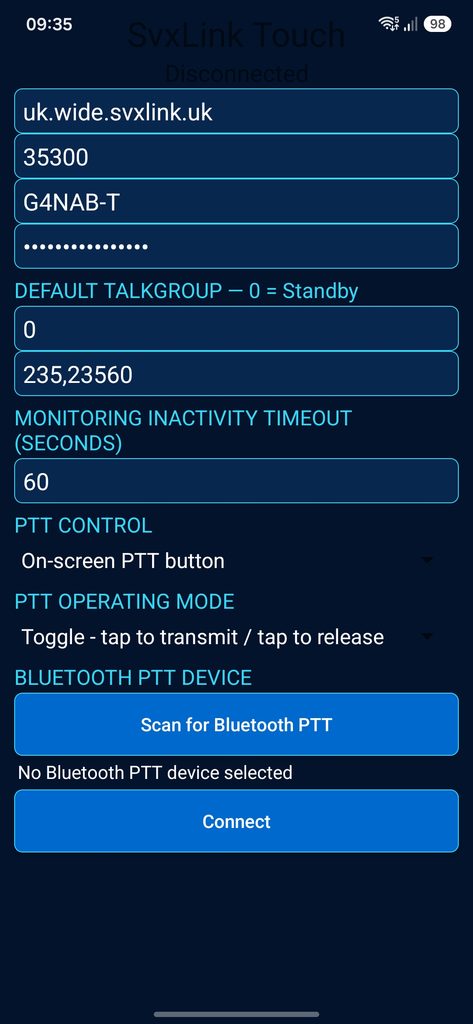
The App opens to its front page, unconfigured, requiring the user to go to Settings first, to install the information required to operate it, the connecting address of the reflector, and its required port number, The callsign (e.g. G1ABC-T) of the user followed by the authorised key (password). These boxes are unlabelled, but contain a facsimile of what is required.
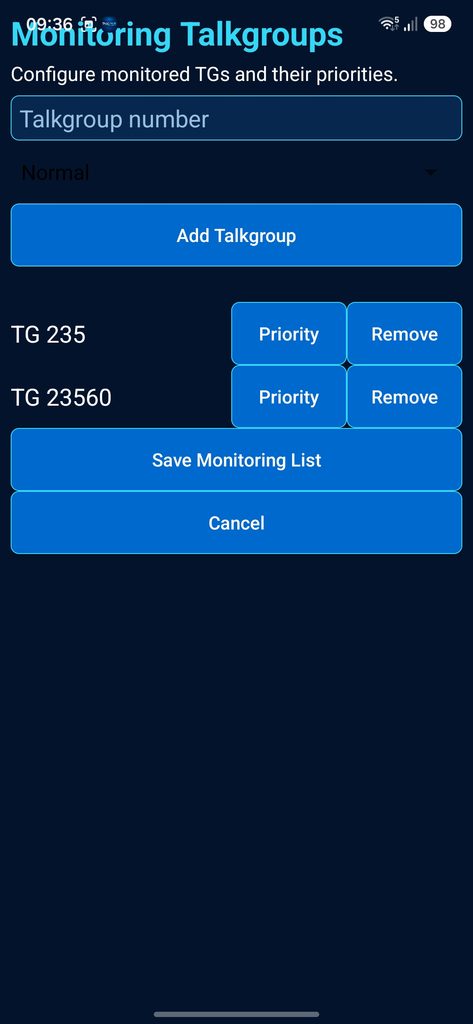
Here they can enter the Default Talkgroup – Always 0, and any Monitoring Talkgroups to which he would like the node to respond if activity is discovered. As in the Full SvxLink application the addition of a Monitoring Talkgroup opens a new window. Adding a + or ++ after the talkgroup raises it in priority for monitoring. Additionally Talkgroups can be removed. Saving the Talkgroups instantly updates the presence of the talkgroup against the stations callsign in the SvxReflector, if the Reflector is configure in the settings and connected.
Whilst there is a box for Monitoring Inactivity Timeout, the user will find it unneccesary to change as the Talkgroup selected remains available for all time the Application is alive.
The PTT CONTROL offers a choice of PTT on the phone or by an optional Bluetooth© PTT Button purchased by the user from sources such as Amazon©.
PTT OPERATING MODE offers a choice of Hold to Transmit or Toggle to Transmit, that is applied equally to the On-Screen PTT or the BlueTooth© Button.
To enable activation of a purchased Bluetooth© button, there is a Scan for BlueTooth© PTT next on the screen, that searches for and detects the device. Once found it is saved for all time.
To enable the Node click on Connect that takes the user to the front page again.
At the front page the user shall find the icon on the top line of the screen indicating that the App is operational. Indication that the App is connected is displayed just below the SvxLink-Touch Logo, the callsign-T and the settings and disconnect buttons, stating Connected to SvxReflector.
The Receiver and Transmitter buttons indicate the appropriate activity, green in receive when there is reception, and red in Transmit when the PTT is operated.
The Reflector Block should indicate light-blue when connected to the SvxReflector, and the Talkgroup Block indicates in Orange the active Talkgroup.
If Reflector block is dark it will indicate that the Reflector is disconnected.
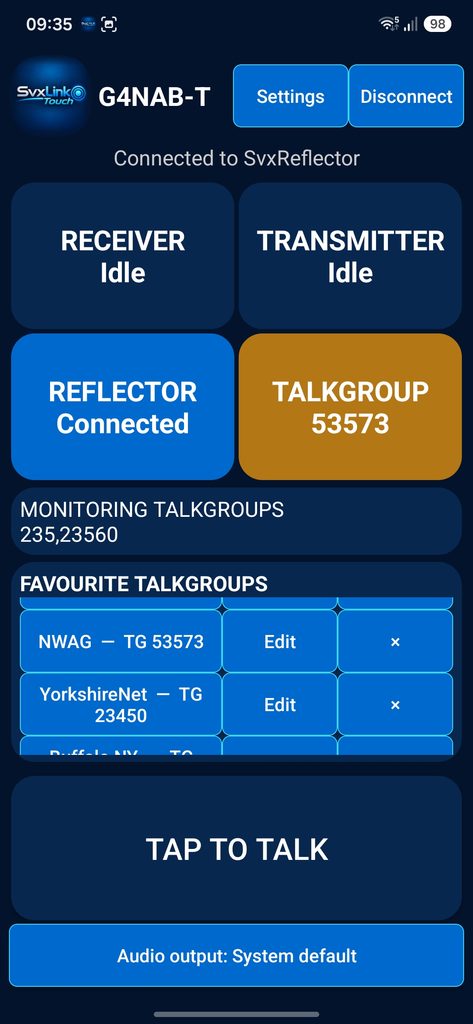
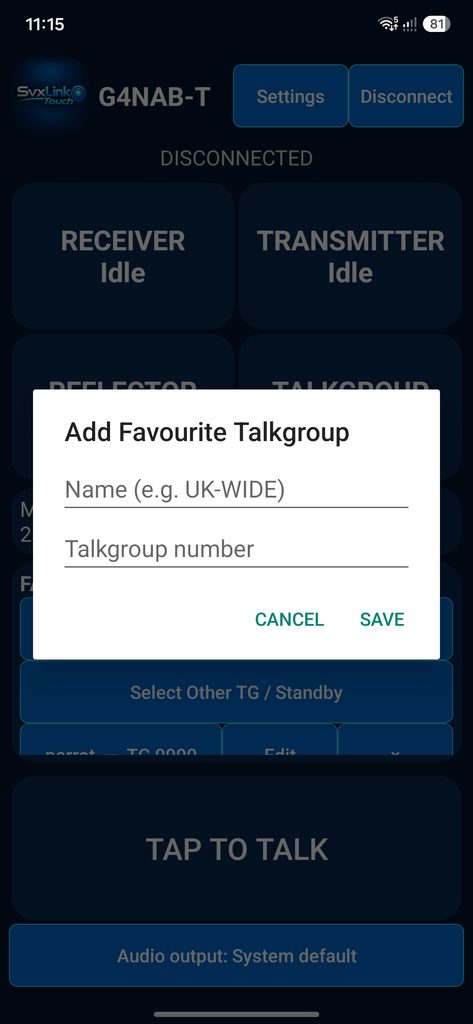
Below the Monitoring Talkgroups bar are Favourite Talkgroups that the user can preprogram or edit to operate the transmission. By tapping on one of these Favourite Talkgroups on the left side, the Talkgroup is activated in the Talkgroup Block ready for transmission. If there is already activity on this group the Receiver Block will turn green. The user cannot transmit if this block is active.
As in the Full SvxLink application the addition of a Monitoring Talkgroup opens a new window. Adding a + or ++ by tapping Priority after the talkgroup raises it in priority for monitoring. Additionally Talkgroups can be Removed. Saving the Talkgroups instantly updates the presence of the talkgroup against the stations callsign in the SvxReflector, if the Reflector is configure in the settings and connected.
Other talkgroups can be added in this fashion without adding them to the Favourite Talkgroups.
Below the Favourite Talkgroups panel is the larger PTT Block that is dark until touched. If set for HOLD TO TALK it will turn orange to display PTT STARTING and return to HOLD TO TALK when released. If set to Toggle it will display TAP TO TALK and when touched will display PTT STARTING through to TAP TO STOP. At the same time the TRANSMITTER BLOCK will become Red, until the ptt is touched to release it.
Finally at the bottom of the screen, the audio output may be selected, with the selection of earpiece, loudspeaker, or BlueTooth© device than will include the BlueTooth© in a vehicle’s entertainment system. There is a little hysteresis as the change takes place, but this is the change of output occuring in the phone.
So the user now has a mobile radio in the car, especially with a Bluetooth© PTT.
Attention: be aware of the legal implications of using a phone whilst mobile.
Svxlink-Touch-Android is not available on Play-Store, it is an .apk installed application for those who are confident in the method. The development of the app was done using a Samsung Galaxy S24, so there may be some differences if a different phone is used, but the application has been written in native Kotlin with Gradle, especially for Android.
From a browser in your Android Smart phone Web app search for this link and download it to your phone, you will need to give Bluetooth© permissions for a button search if you have a Bluetooth© PTT button.
Important — Enable Notifications
To ensure SvxLink-Touch displays its connection notification, open:
Android Settings → Apps → SvxLink Touch → Notifications
Enable Allow notifications.
This allows Android to display the application’s ongoing connection notification while SvxLink-Touch operates in the background.
The setting can be changed at any time.